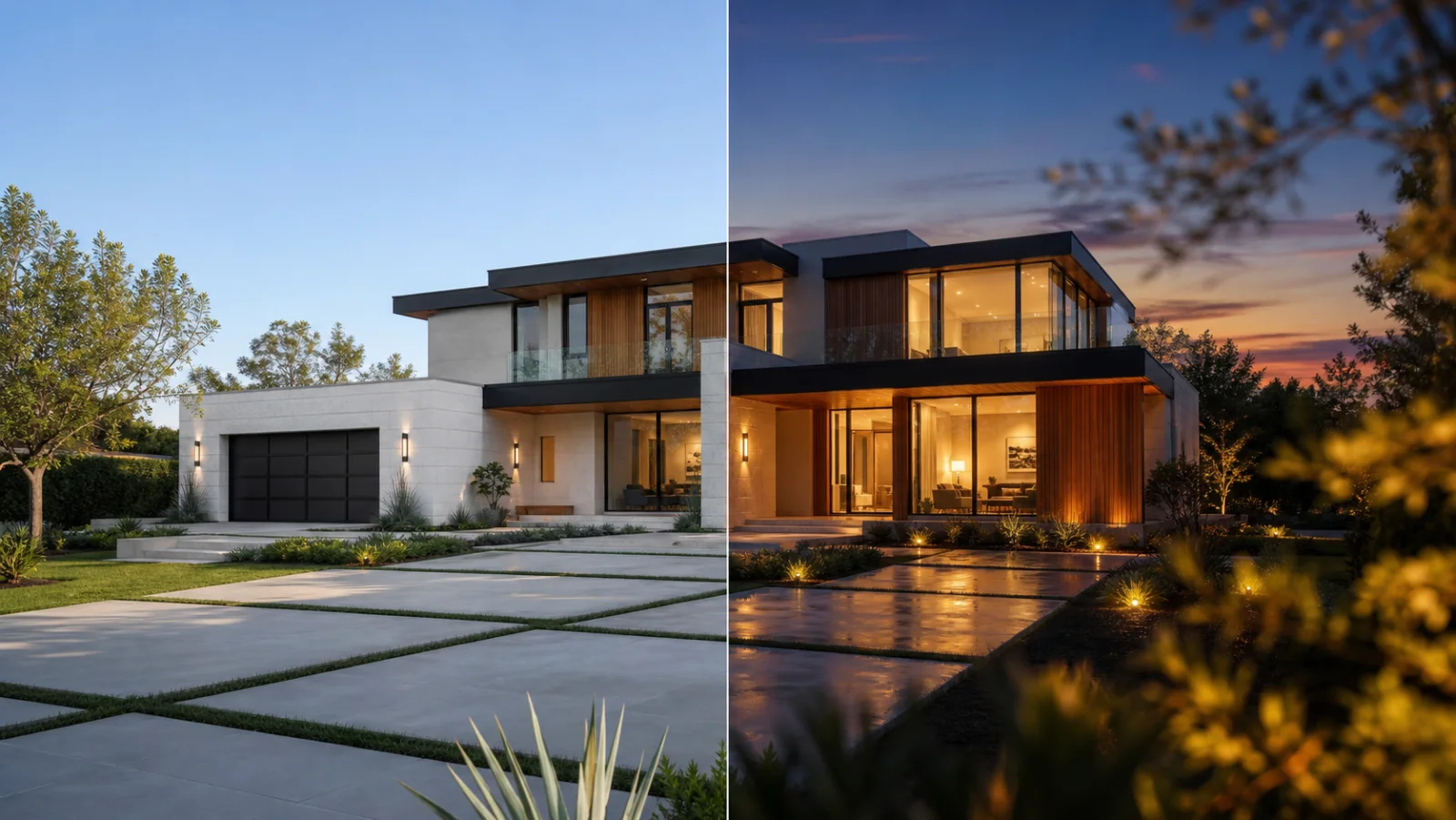
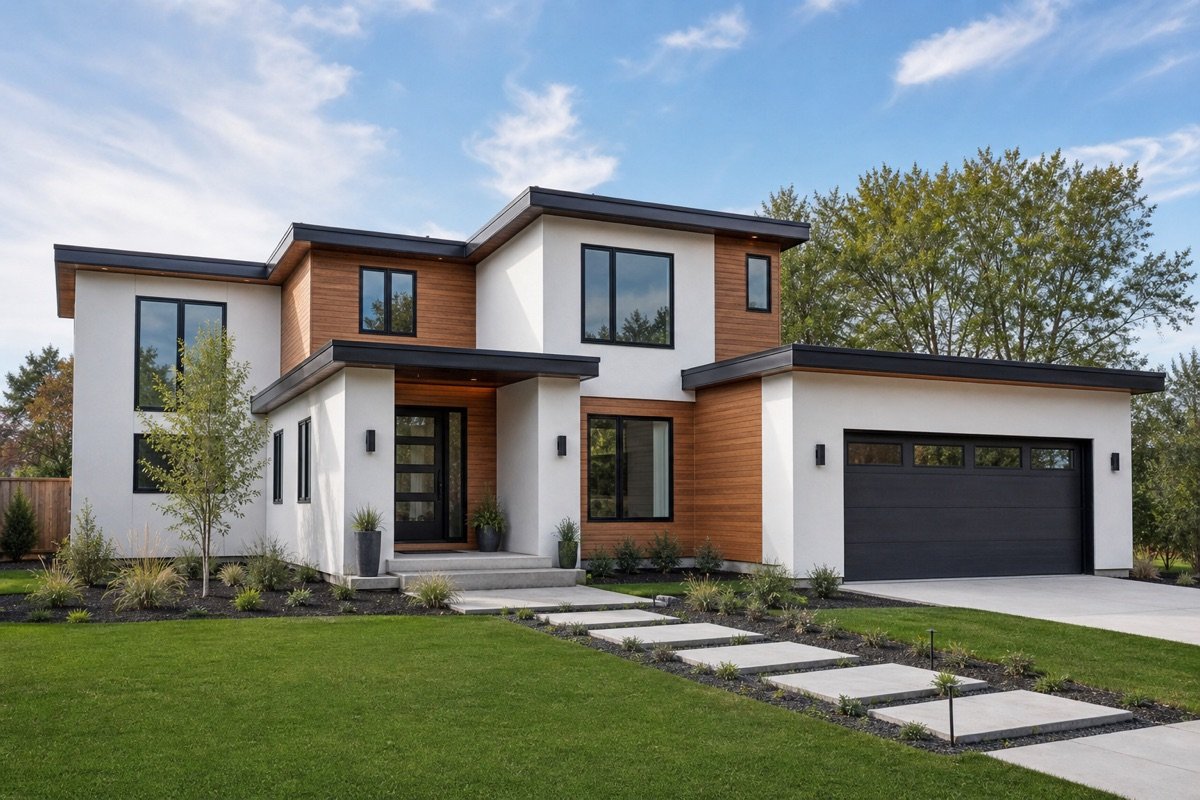
Exterior Reveal
A restrained approach toward the front elevation.
Create short real-estate clips from a start frame, with an optional end frame and controlled presentation settings.


Use the examples as a starting point, then refine the result inside your EstateFrame workspace.
A restrained approach toward the front elevation.
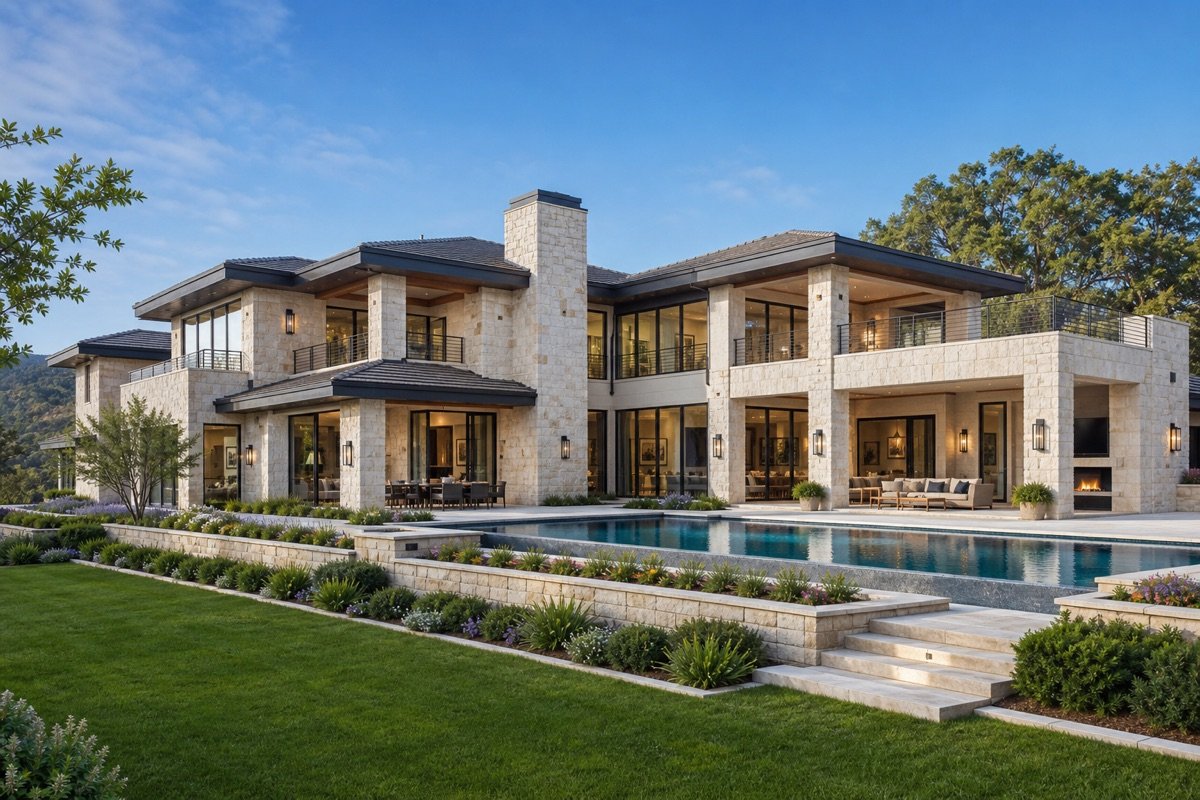
A polished blue-hour movement for premium homes.
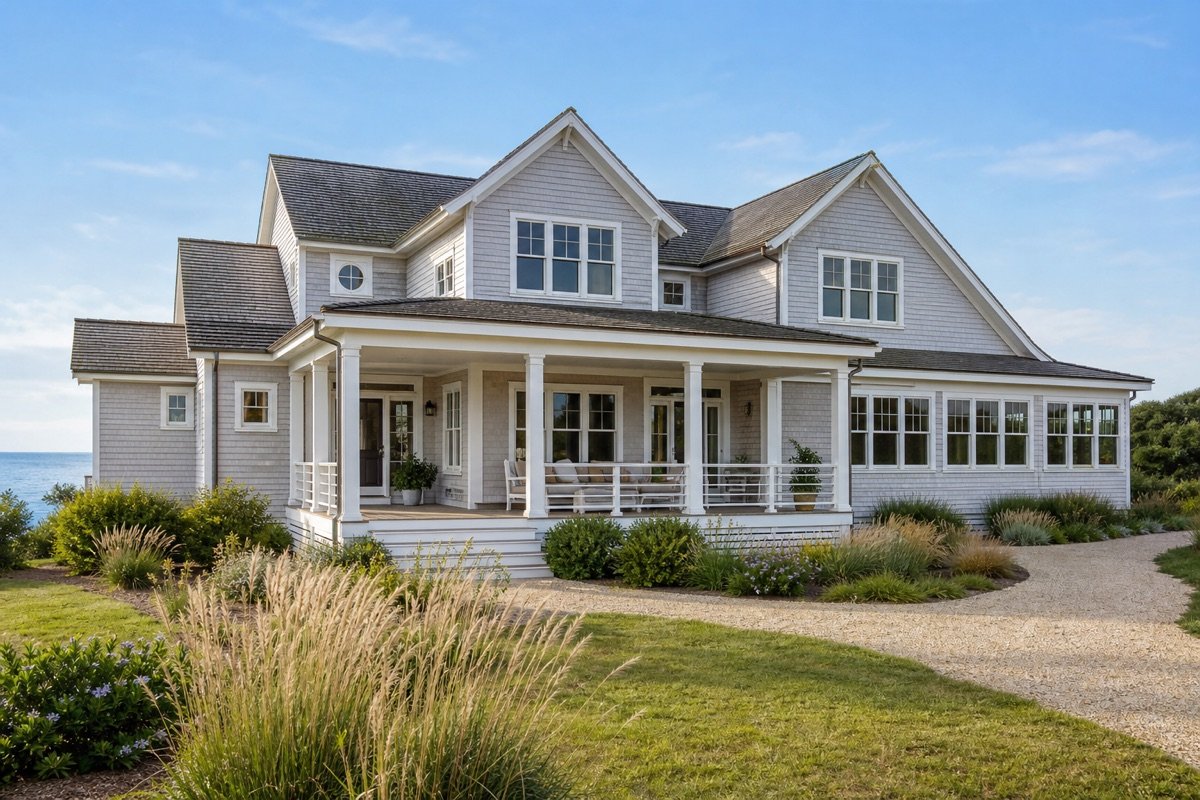
Slow movement that gives outdoor space context.
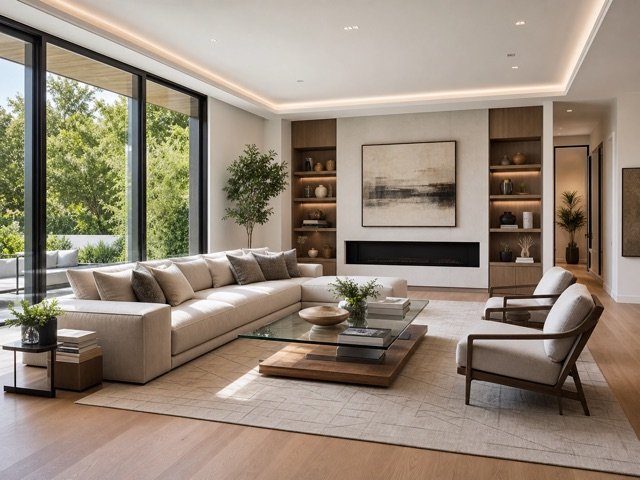
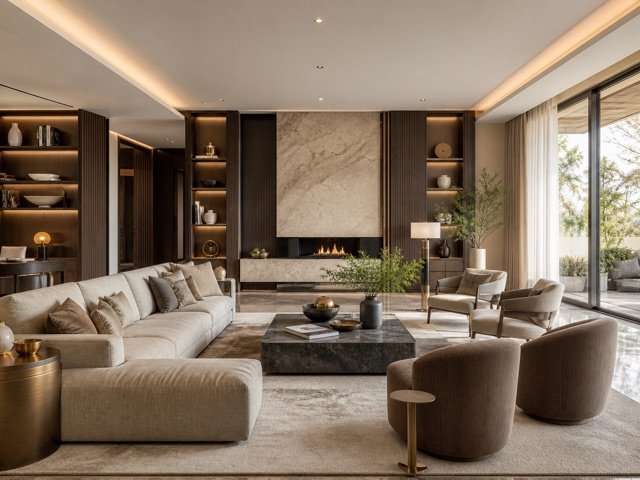
A gentle room movement that keeps architecture readable.
A focused workflow keeps the experience simple for agents, sellers, designers, and property teams.
Turn a strong listing still into a short motion asset for property marketing.
Use a concise prompt and stable source image to guide a polished camera feel.
Add lightweight video content to social posts, property pages, and campaign previews.
Upload a strong start image and optionally a compatible end image.
Describe the camera movement and choose the supported aspect ratio.
Create the clip, review motion and architecture, then download the result.
Small improvements to the source image and instructions can make the final result easier to trust and use.
Clear architecture and uncluttered edges reduce visual drift when the camera movement is generated.
Directions such as slow push-in, gentle pan, or subtle parallax are easier to control than complex sequences.
If you add an end image, keep the property, perspective, and lighting direction closely related to the start frame.
These answers describe the current EstateFrame workflow and its intended use.
Contact support →No. A start frame is required and the end frame is optional.
The current mapped workflow uses the provider-supported 720p output.
No. The current workflow focuses on the visual clip so sound can be added during final editing.
Use one clear instruction such as a slow push-in, subtle left-to-right pan, or gentle exterior reveal.
Open the EstateFrame workspace, use your free credits, and keep every result organized in one account.