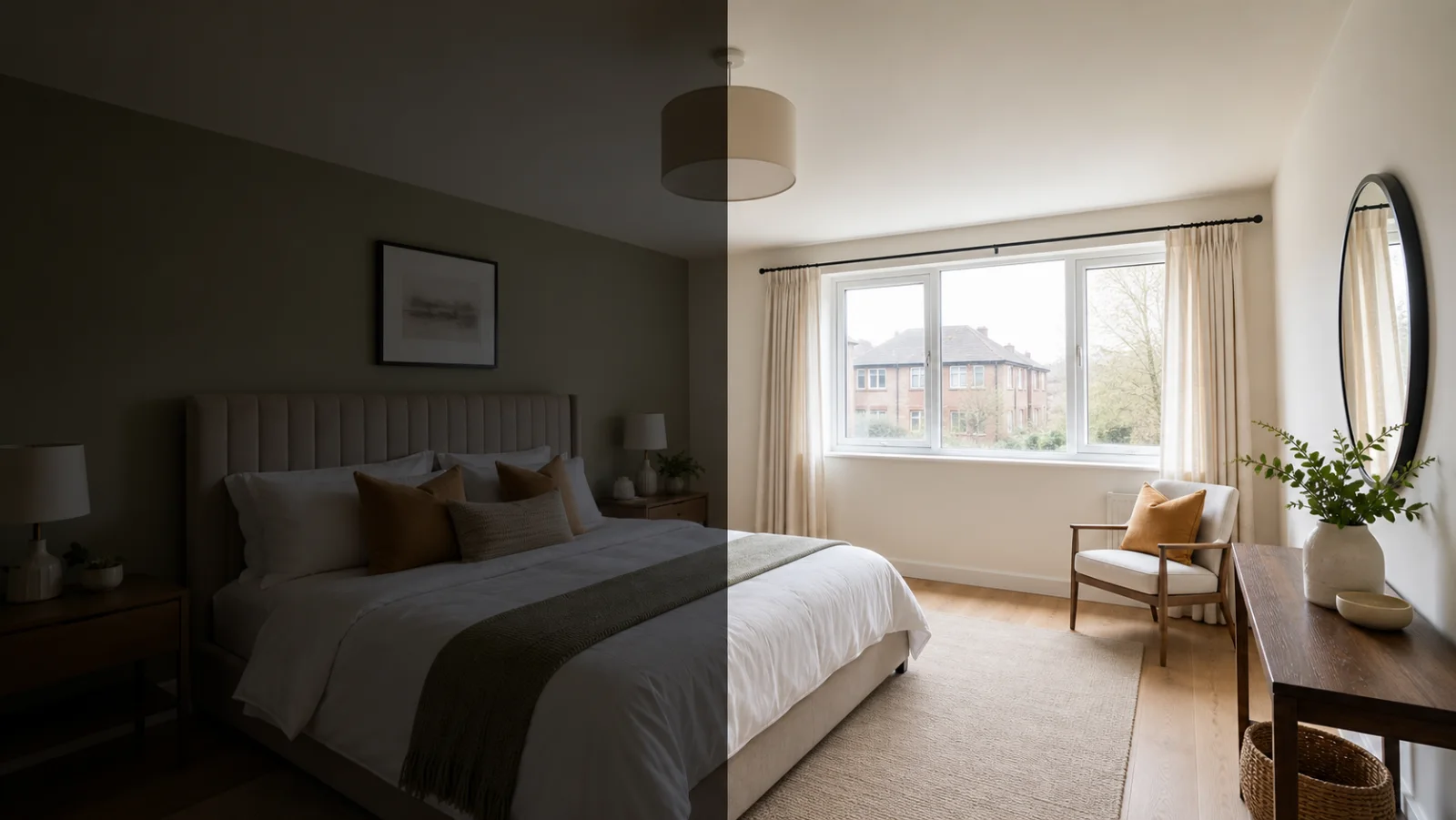
Low Light
Recover a clearer, more balanced interior exposure.
Improve exposure, detail, color balance, and presentation without redesigning the property or changing its contents.


Use the examples as a starting point, then refine the result inside your EstateFrame workspace.
Recover a clearer, more balanced interior exposure.

Retain exterior detail without flattening the room.
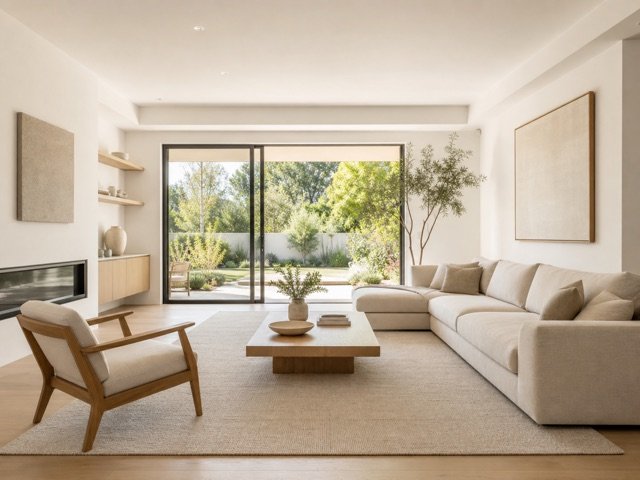
Create neutral, believable whites and materials.
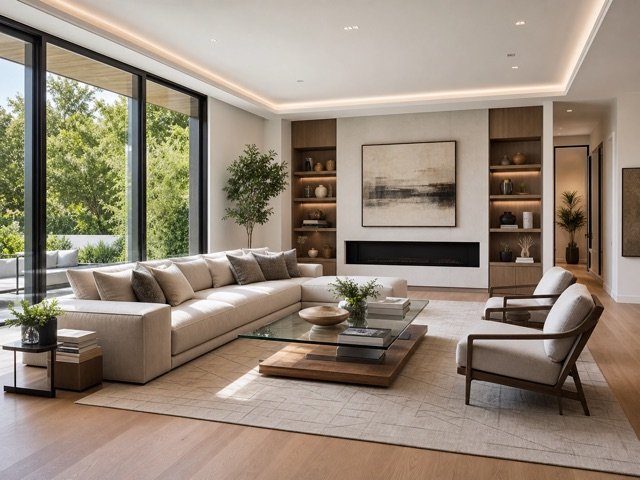
Improve clarity while avoiding a processed look.
A focused workflow keeps the experience simple for agents, sellers, designers, and property teams.
Lift dark interiors and control bright windows for a more readable property image.
Refine clarity and color while keeping the photographed room authentic.
The workflow is focused on image quality rather than adding furniture or changing finishes.
Choose the highest-quality original image available.
Optionally describe the exact correction you want to prioritize.
Generate, compare the result, and verify that the property remains accurate.
Small improvements to the source image and instructions can make the final result easier to trust and use.
Avoid screenshots or repeatedly compressed copies. More source detail gives the enhancer better information.
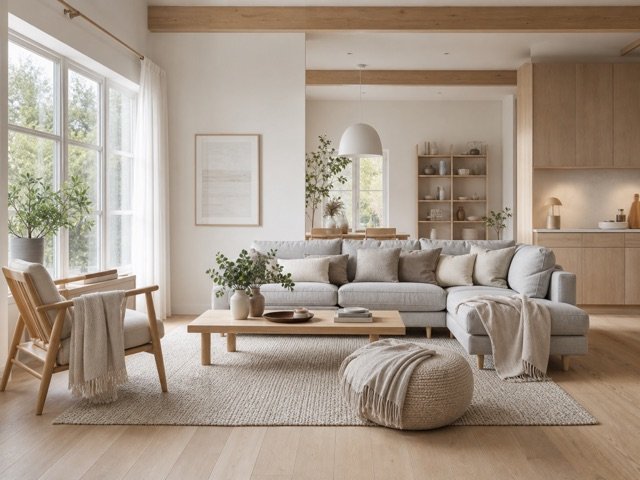
A realistic listing image should preserve material color and avoid excessive sharpening or artificial contrast.
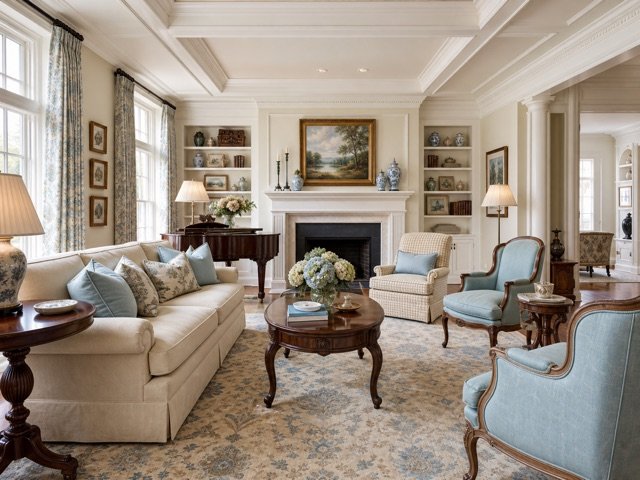
Check railings, frames, roof edges, and repeated textures at full size before publishing.
These answers describe the current EstateFrame workflow and its intended use.
Contact support →No. Image Enhancement is intended to improve the existing photograph rather than redesign it.
It can improve clarity, but severely blurred or tiny source files may not contain enough recoverable detail.
The mapped provider may upscale the output depending on its configured model settings.
Yes. Check color accuracy, texture, windows, edges, and any fine architectural detail.
Open the EstateFrame workspace, use your free credits, and keep every result organized in one account.