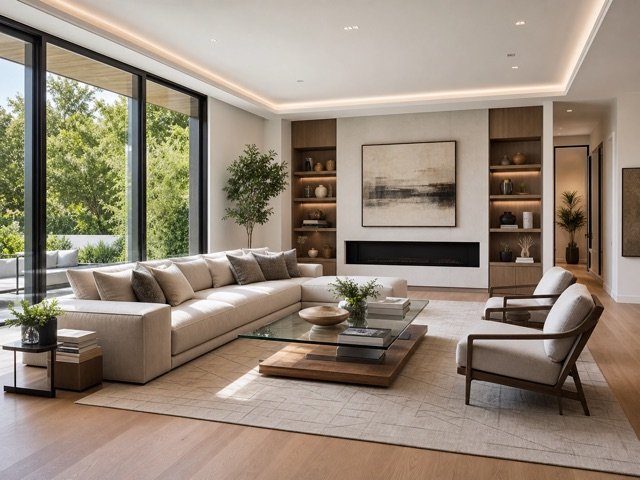
Modern
Calm lines, warm neutrals, and listing-ready balance.
Add realistic, room-aware furniture and styling while keeping the architecture, perspective, and natural light intact.
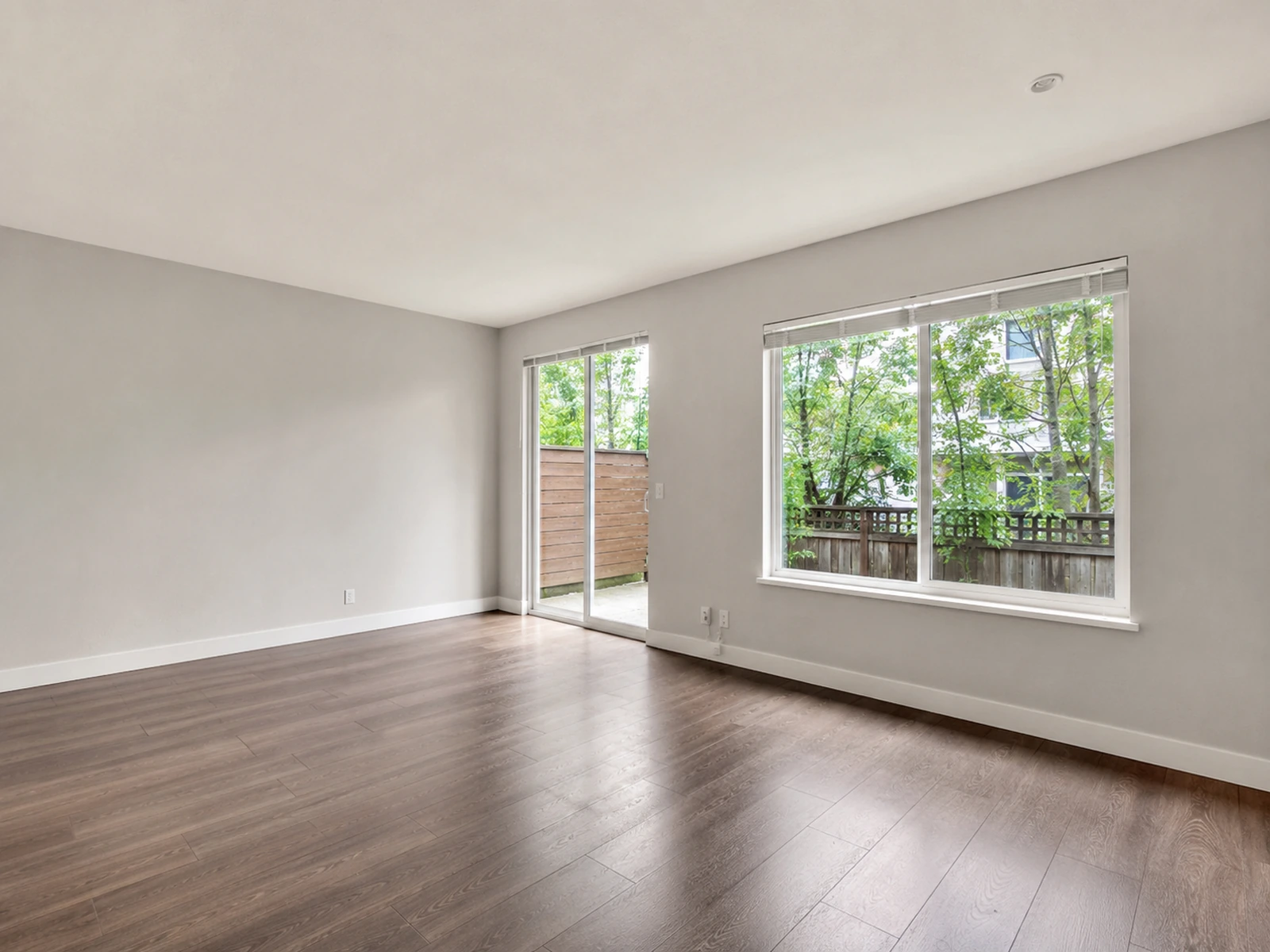
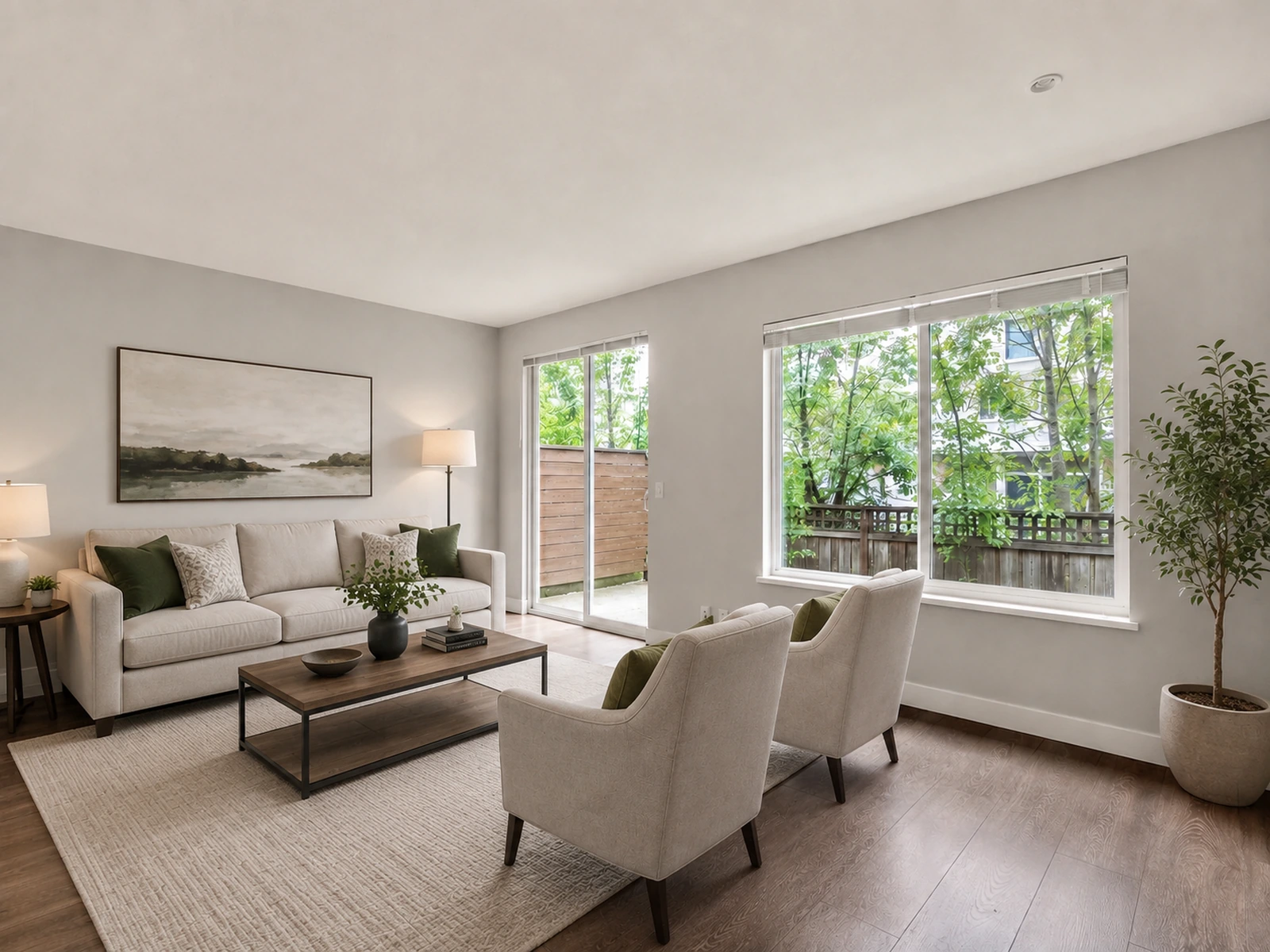
Use the examples as a starting point, then refine the result inside your EstateFrame workspace.
Calm lines, warm neutrals, and listing-ready balance.
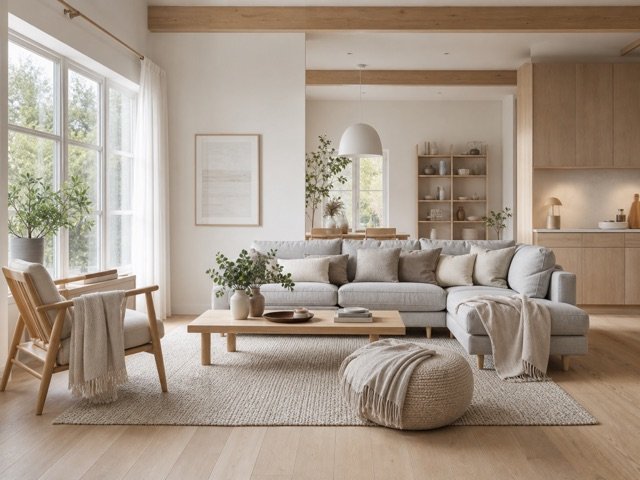
Light woods, soft texture, and functional simplicity.
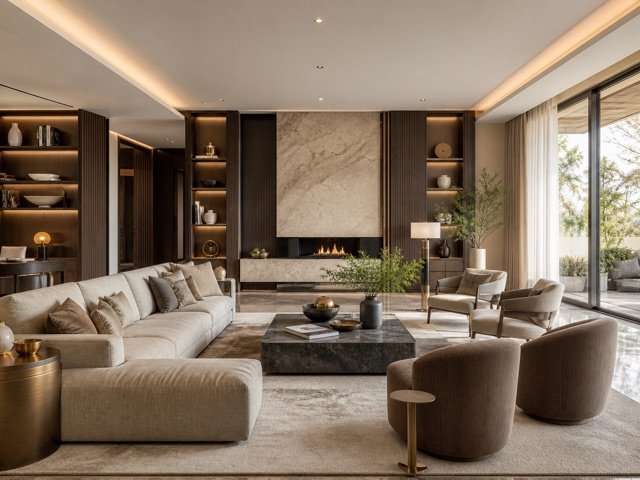
Layered materials and a refined premium finish.
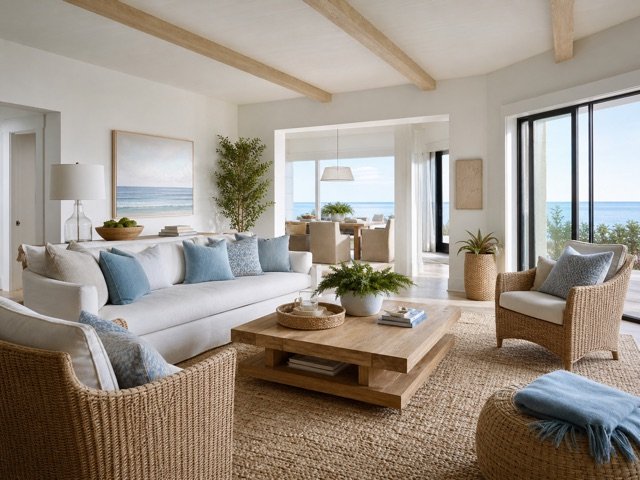
Airy color, relaxed texture, and natural light.
A focused workflow keeps the experience simple for agents, sellers, designers, and property teams.
Help buyers understand scale and function without arranging a physical staging visit.
The workflow is instructed to retain walls, windows, doors, flooring, and camera perspective.
Create polished concepts in minutes and keep multiple style directions ready for review.
Choose a clear, well-lit photo of the empty or lightly furnished room.
Select the room type, design style, and the rendering mode you need.
Review the before-and-after result, download it, or save it to a project.
Small improvements to the source image and instructions can make the final result easier to trust and use.
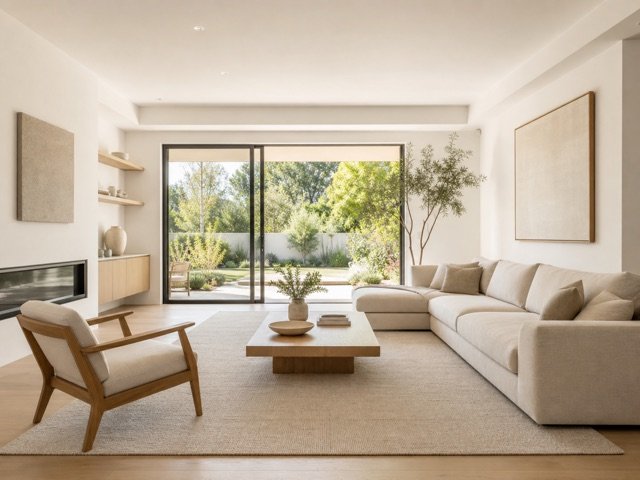
Keep the camera level and show at least two walls. This gives the model a clearer sense of depth, scale, and furniture placement.
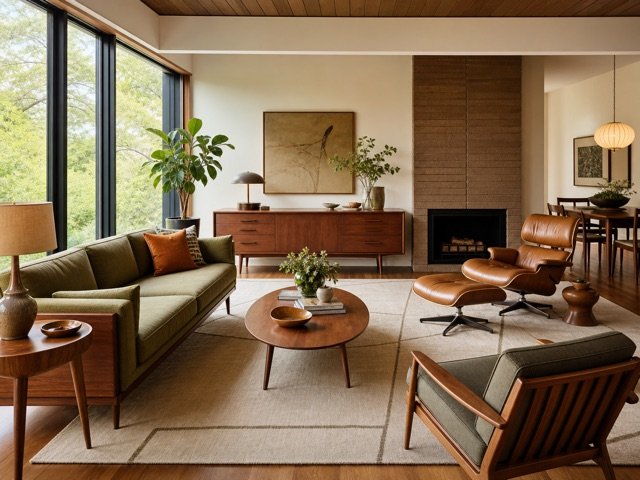
Use restrained contemporary styling for broad appeal, or select a more distinctive direction when the property already has a strong identity.
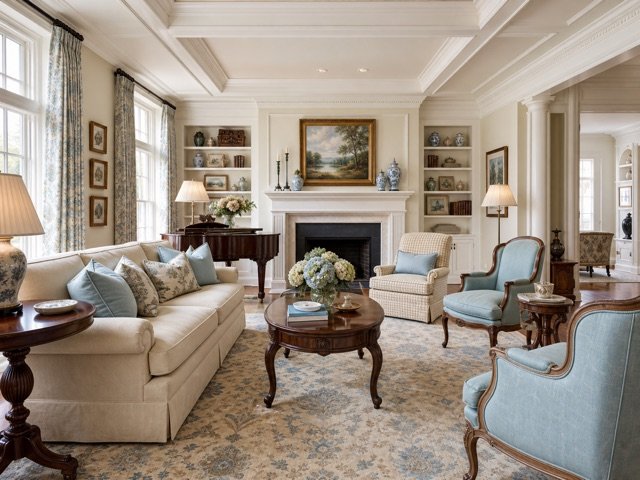
Avoid photos blocked by doors, people, or oversized objects. Clear sightlines produce more useful and believable concepts.
These answers describe the current EstateFrame workflow and its intended use.
Contact support →The prompt is designed to preserve permanent architecture. Always review generated visuals before publishing a listing.
Yes, although Furniture Replacement is better when the main goal is to swap an existing furniture set.
The current workflow supports living rooms, bedrooms, kitchens, home offices, and bathrooms.
Yes. Advanced mode lets the user add direction while the managed prompt keeps the result focused on real-estate staging.
Open the EstateFrame workspace, use your free credits, and keep every result organized in one account.